Important: The KingShot game must be set to English for the bot to work correctly. Change the game language to English before starting the bot.
Download and Install BlueStacks
KingShot Bot runs on BlueStacks 5 emulator. If it's not installed on your computer, download and install BlueStacks 5.
Configure BlueStacks Settings
To ensure the bot works correctly, configure BlueStacks settings as shown below. Open BlueStacks and click the ⚙️ Settings button in the top right.
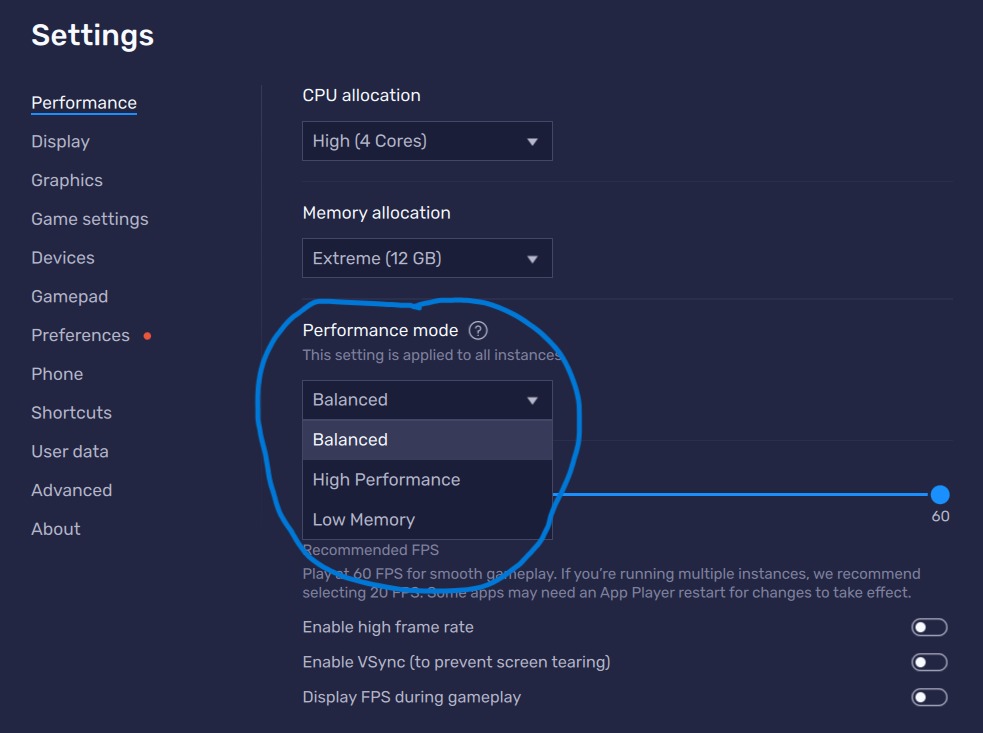
- CPU allocation: High (4 Cores)
- Memory allocation: Extreme (12 GB)
- Performance mode: Balanced
- FPS: 60
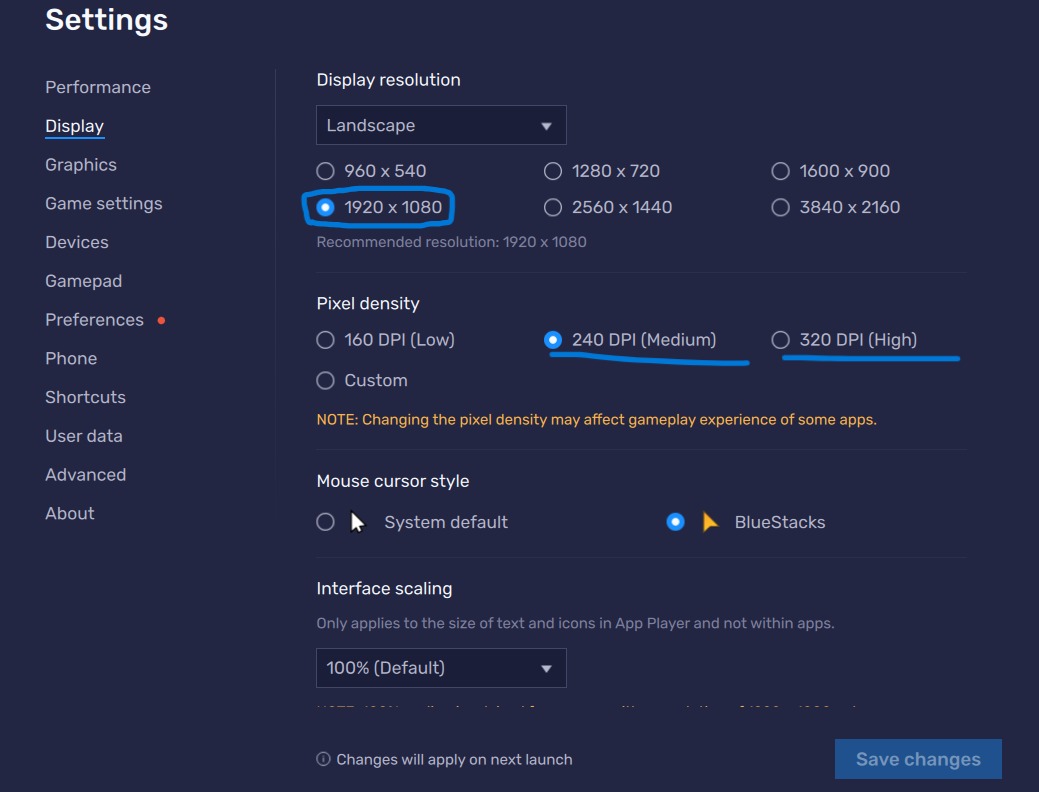
- Orientation: Landscape
- Resolution: 1920 x 1080
- Pixel density: 240 DPI (Medium)
- Mouse cursor: BlueStacks
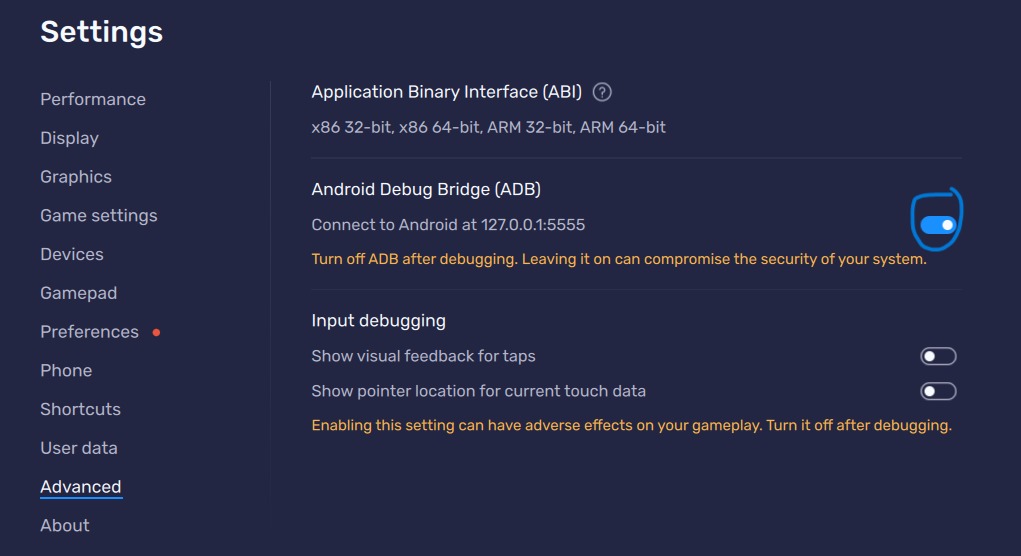
- Android Debug Bridge (ADB): On (ON)
- ADB connection: 127.0.0.1:5555
- Input debugging: Off
Install KingShot Game
Download and install KingShot from the Google Play Store inside BlueStacks. Sign in with your Google account, open the game and wait until you reach the main screen.
Download and Run the Bot
Download the bot file from the link sent to your email after purchase. Extract the zip file and run setup.bat.
setup.bat runs, a terminal window opens — required components are installed automatically. After the terminal closes, the setup wizard starts automatically.Wait until the download completes and the setup wizard opens. This may take 1-3 minutes depending on your internet speed.
Enter Your License Key
When the bot opens, it will ask for a license key. Copy and paste the key from the email you received after purchase and click Activate.
If activation is successful, the main panel opens. Select your modules, press Start — the bot starts working.
Troubleshooting
If the bot isn't working, try the following steps in order.
Check that ADB is enabled in BlueStacks settings (Advanced → Android Debug Bridge: ON). If it's off, enable it and restart BlueStacks.
Check the following: (1) BlueStacks Eco Mode must be off. (2) KingShot game must not be minimized — the game must be visible on screen. (3) BlueStacks resolution must be 1920×1080, DPI 240.
The bot supports Turkish and English interfaces. The KingShot game language must be one of these two. If it's a different language, change it to Turkish or English in the game settings.
Each account requires a separate BlueStacks instance. Use BlueStacks Multi-Instance Manager to create multiple instances. Run the bot separately for each instance.
The bot has an auto-update system — when a new version is released, it updates on startup. Wait without force closing during the update. If the issue persists, close and reopen the bot.
If none of the above worked, contact our support team.
Create Support Ticket